USB-C Hubs Compared: Fewer Ports Can Make a Better Desk
Learn how to assess USB-C hubs by host compatibility, display support, shared bandwidth, power pass-through, and the peripherals you actually use.
This guide draws on published documentation and practical use cases, not hands-on testing. It contains no paid product placements or affiliate shopping links. How we work · Affiliate Disclosure
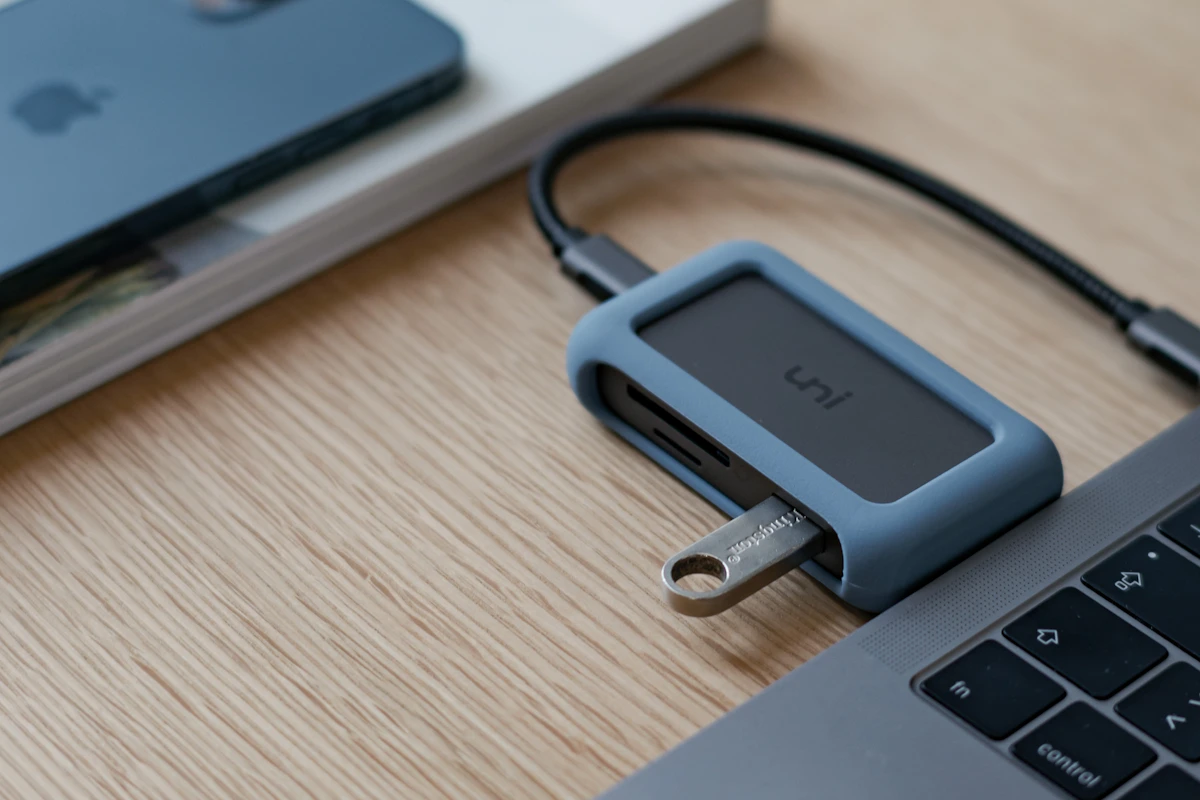
Write down your laptop and peripheral requirements first; the number of sockets is less important than whether the entire connection supports your workload.
In this guide
A laptop arrives with two small ports. Your desk still has a monitor, a keyboard receiver, an external drive, and an Ethernet cable. A hub seems to turn one connection into everything you need, until the second screen mirrors the first or the laptop charges more slowly than expected.
The useful question is not how many sockets a hub contains. It is whether the laptop, hub, cables, and connected devices support the same features at the same time. Our assessment favors the simplest hub that covers a known setup. A more expensive dock can be worthwhile for a permanent workstation, but its compatibility needs the same careful review.
Begin with the computer, not the hub
Look up the exact laptop model and port specification. USB-C describes the connector, while data, video, charging, USB4, and Thunderbolt capabilities vary. Some laptops also provide different capabilities through different USB-C ports.
For a common DisplayPort Alternate Mode connection, video support must exist in the relevant host port and the rest of the path. A hub cannot create that native capability just by including an HDMI socket. Microsoft explicitly recommends checking the host, cable, and device features when diagnosing USB-C connections.
Some display adapters instead use a software-based USB graphics approach. That can involve drivers and its own compatibility, performance, or content restrictions. It should be an intentional choice, especially on a managed work computer where you cannot install software freely.
A practical comparison of hub types
| Setup | Useful approach | Main limitation to investigate |
|---|---|---|
| Occasional keyboard and flash drive | Basic data hub | Available power for attached devices |
| Laptop plus one external screen | Hub with a documented display mode | Resolution and refresh rate with your host |
| Desk with several demanding devices | Powered dock with clear compatibility information | Shared bandwidth and operating-system behavior |
| Travel presentations | Compact adapter covering the expected screen connection | Fixed cable length and unfamiliar displays |
Two HDMI sockets do not automatically mean two independent extended desktops. Check the exact laptop, operating system, and required screen arrangement. A photograph showing multiple monitors is not a substitute for a compatibility table.
Read display details beyond “4K”
Resolution without refresh rate is incomplete. So is a maximum figure that applies only when one display is connected. Read the supported combinations, including the number of screens, refresh rates, and any reduction when other features are active.
Consider what you actually do. A presentation screen used occasionally has different needs from a large monitor used for scrolling text all day. If your monitor already provides a suitable USB-C connection and the ports you need, a separate hub may add complexity without improving the desk.
For a two-screen setup, confirm whether the configuration supports extension rather than mirroring. Also check whether laptop display limits change when its lid is open or closed. Those limits belong to the computer as well as the dock.
Shared data and shared power
A hub’s ports feed through an upstream connection. Multiple fast devices may therefore share bandwidth rather than each receiving the full advertised maximum at once. USB4 explicitly supports sharing a high-speed link among different traffic types, but actual capabilities still depend on the implementation.
For someone backing up large files while using a display, documented simultaneous behavior matters. For a keyboard and mouse, port placement and reliability may matter more than the highest available data rate.
Charging pass-through deserves a separate check. The adapter’s input figure may exceed the power delivered onward to the laptop because the hub requires power too. Read the stated host-charging output and use the specified power source. Our USB-C charger guide explains why a multiport charger’s output can change when another device is connected.
Design details that affect a real desk
Measure where the hub will sit. A very short captive cable may leave it hanging from a raised laptop. A thick enclosure can crowd an adjacent port, while closely spaced sockets can prevent two bulky plugs from fitting together.
A detachable host cable is convenient to replace, but its required capabilities must be preserved. Do not substitute an ordinary charging cable and assume the dock will retain video and fast data. See our USB-C cable comparison for the separate specifications.
Who should skip a full dock?
If you only connect a mouse receiver, a small adapter may be enough. If you rarely use an external display, a dedicated video adapter can be simpler to pack than a large dock. Keep your existing arrangement if every connection works and there is no specific bottleneck.
Avoid purchasing extra ports for hypothetical devices when the compatibility of your current monitor remains unconfirmed. Solve the known requirement first.
Frequently asked questions
Does any USB-C hub work with any USB-C laptop?
Basic functions may work, but video, charging, and higher data capabilities require compatible hardware and sometimes software. Verify the intended functions individually.
Why does my laptop show slow charging?
The power source, sharing arrangement, cable, or hub’s host output may be limiting it. Compare the complete path with the laptop’s requirements.
Can a hub replace a laptop stand?
No. A dock manages connections. A laptop stand changes screen position; it introduces separate space and input-device considerations.
Sources and scope
Checked October 21, 2026: Microsoft’s USB-C troubleshooting guide and USB-IF’s USB4 architecture overview. This analysis explains compatibility and workflow; it does not report hands-on throughput tests.
Keep exploring
Compact vs. Full-Size Keyboards: Count Your Shortcuts Before the Keys
Compare compact and full-size keyboard layouts for number entry, navigation, mouse space, travel, shared desks, and the hidden cost of function layers.
Read the guide
Ergonomic Mice Compared: Vertical, Conventional, or Trackball?
Compare mouse shapes by hand fit, pointer work, desk space, and learning curve, with practical checks that matter more than an ergonomic label.
Read the guide
Laptop Docking Stations: When a Permanent Connection Hub Makes Sense
Assess laptop docks for multiple displays, host compatibility, power delivery, shared peripherals, software requirements, and a reliable daily desk connection.
Read the guide