Laptop Docking Stations: When a Permanent Connection Hub Makes Sense
Assess laptop docks for multiple displays, host compatibility, power delivery, shared peripherals, software requirements, and a reliable daily desk connection.
This guide draws on published documentation and practical use cases, not hands-on testing. It contains no paid product placements or affiliate shopping links. How we work · Affiliate Disclosure
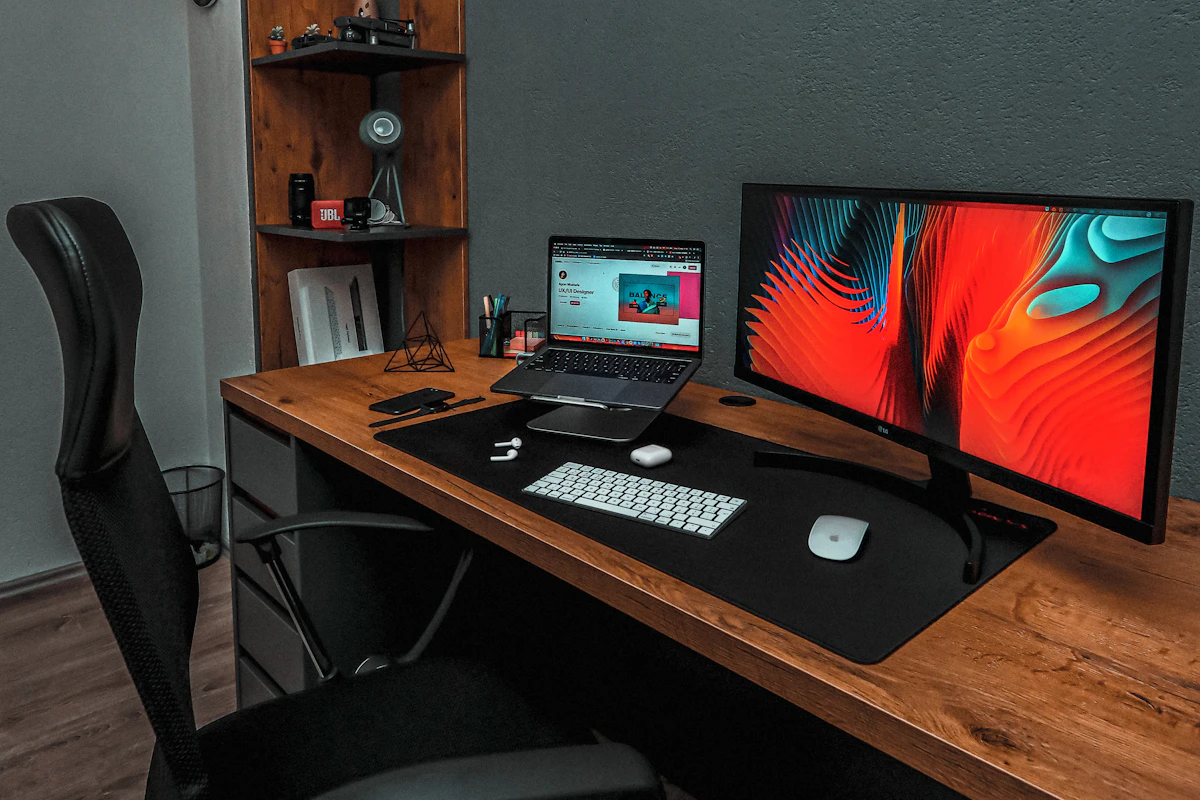
A dock earns its place when it simplifies a known desk setup; verify the exact host, display arrangement, charging output, and software needs before comparing port counts.
In this guide
- A dock is a system, not a universal port multiplier
- Compare the intended desk arrangement
- Write the display requirement precisely
- Five steps to evaluate a candidate dock
- Power and bandwidth belong in separate columns
- Everyday reliability includes the small details
- Who should skip a dock?
- Frequently asked questions
- Sources and scope
Each morning, you connect a laptop to a monitor, charger, Ethernet cable, webcam, and external keyboard. Each evening, you disconnect them again. A dock promises to reduce that routine to one main connection. That is a meaningful convenience when the equipment remains on a permanent desk, but the promise depends on what the computer and dock can actually do together.
Our assessment favors a dock for a repeatable workstation with several connections, especially when a documented compatible arrangement combines display output and appropriate laptop charging. A small hub or direct connection remains more sensible for occasional accessories and travel. More sockets do not remove compatibility questions.
A dock is a system, not a universal port multiplier
Start with the exact laptop model, operating system, and host port. USB-C identifies the connector, while USB data, DisplayPort video, USB4, Thunderbolt, and charging capabilities vary. A dock may offer a reduced fallback mode on a different host, or may not support the required features at all.
Dell’s docking guide distinguishes native USB-C display arrangements, Thunderbolt docks, and USB graphics approaches such as DisplayLink. Those distinctions matter more than a product being described broadly as “universal.” Read the compatibility details for your computer instead of inferring them from connector shape.
The difference between a hub and dock is not rigidly standardized in marketing. For practical purposes, focus on the actual power supply, host link, display support, and peripherals rather than the name on the box. Our USB-C hub guide covers smaller expansion setups.
Compare the intended desk arrangement
| Arrangement | Where it makes sense | Main limitation to verify |
|---|---|---|
| Direct monitor connection with built-in USB ports | One display and a few light peripherals | Available ports and laptop charging output |
| Compact hub | Occasional display or accessory use | Power and bandwidth under simultaneous use |
| Powered USB-C or Thunderbolt dock | Repeatable workstation with several devices | Exact host and display-mode compatibility |
| USB graphics dock | A supported use case needing that specific display approach | Driver permissions, software behavior, and workload suitability |
A dock’s convenience is strongest when the peripherals stay connected. If you must pack every cable and its large power adapter after each session, the arrangement may be less portable than a small adapter kit.
Write the display requirement precisely
“Two monitors” is incomplete. Record each screen’s resolution and refresh rate, whether they must show independent extended desktops, and whether the laptop screen stays active. Also note the monitor inputs you can use.
The computer’s native display limits still apply to native display connections. Apple’s support guidance directs users to model-specific display capabilities; a dock cannot be assumed to bypass them. Software-based USB graphics uses a different path and brings its own requirements rather than simply turning every host into the same system.
Check the dock’s table for the actual combination you intend to use. A maximum resolution quoted for one display may not apply to two displays simultaneously. Similarly, two identical-looking output sockets do not guarantee the same supported combinations in every operating system.
Five steps to evaluate a candidate dock
- Record the host details. Include exact model, operating system, port capabilities, and recommended charging requirement.
- List the screen configuration. Specify resolution, refresh rate, extension versus mirroring, and the laptop display’s status.
- List demanding peripherals. External drives, capture devices, and other sustained-data accessories deserve more attention than a keyboard receiver.
- Check power and software. Confirm delivered laptop power, included adapter, driver or firmware needs, and any administrator permissions.
- Plan the physical connection. Choose a practical dock position, suitable host-cable length, and accessible everyday ports.
A workplace laptop may restrict driver installation, firmware tools, or certain accessories. Check that constraint before choosing hardware whose essential functions depend on additional software.
Power and bandwidth belong in separate columns
The dock’s power adapter rating is not necessarily the power delivered to the laptop. Some energy supports the dock and connected devices. Read the stated host output and any model-specific restrictions, then compare it with the laptop’s requirements.
Likewise, port labels do not mean every connected device receives its maximum data rate at the same time. The upstream connection and internal architecture determine shared resources. A desk used for file transfers and video capture has different needs from one used for documents and a mouse.
USB-IF describes USB4 as an architecture that can share a high-speed link among different traffic types. That principle supports asking about simultaneous behavior; it does not provide a measured result for an individual dock. For important workloads, seek documentation covering your configuration.
Everyday reliability includes the small details
Check whether the host cable is detachable and what replacement specification it requires. A convenient spare charging cable may not preserve the dock’s video and data functions. Our USB-C cable comparison explains why these capabilities must be checked separately.
Consider sleep and wake behavior, Ethernet use, audio-device selection, and how the laptop reconnects after returning to the desk. Some convenience features, such as a dock power button, may depend on a particular laptop family. Do not assume they work across brands simply because basic USB peripherals do.
If two people share the desk, verify both computers. A dual-host switch or KVM capability is a separate feature, not a standard consequence of a dock having several USB-C sockets.
Who should skip a dock?
Skip a full dock if one direct monitor cable and a small adapter already cover the routine. A portable monitor used occasionally may need less infrastructure than a permanent two-screen workstation.
Keep an existing dock that reliably supports your required configuration. Upgrade to solve a documented limitation, such as insufficient charging or an unsupported display mode, rather than chasing a newer interface name.
Frequently asked questions
Can any USB-C laptop use a Thunderbolt dock?
Do not assume full support. Check the dock’s documented host requirements and any fallback capabilities for that exact computer.
Does the biggest power brick charge the laptop fastest?
No. The delivered host output and laptop’s supported charging behavior are the relevant figures.
Can a dock add a second independent display?
Only through a supported hardware and software configuration. Read the exact host and operating-system compatibility information.
Sources and scope
Official references checked 2026-10-21: Dell’s docking-station guide, Apple’s external-display guidance, and USB-IF’s USB4 overview. Configuration recommendations are editorial judgments, not measured throughput, sleep/wake, or compatibility test results.
Keep exploring
Compact vs. Full-Size Keyboards: Count Your Shortcuts Before the Keys
Compare compact and full-size keyboard layouts for number entry, navigation, mouse space, travel, shared desks, and the hidden cost of function layers.
Read the guide
Ergonomic Mice Compared: Vertical, Conventional, or Trackball?
Compare mouse shapes by hand fit, pointer work, desk space, and learning curve, with practical checks that matter more than an ergonomic label.
Read the guide
Laptop Stands Compared: Better Screen Placement Without a Crowded Desk
Compare fixed risers, adjustable laptop stands, portable supports, and vertical holders, including stability, ventilation, and external keyboard needs.
Read the guide