Portable Monitors: When a Second Screen Is Worth the Extra Bag Space
Assess portable monitors for travel and temporary desks by USB-C video support, power needs, readable workspace, stand stability, and complete kit weight.
This guide draws on published documentation and practical use cases, not hands-on testing. It contains no paid product placements or affiliate shopping links. How we work · Affiliate Disclosure
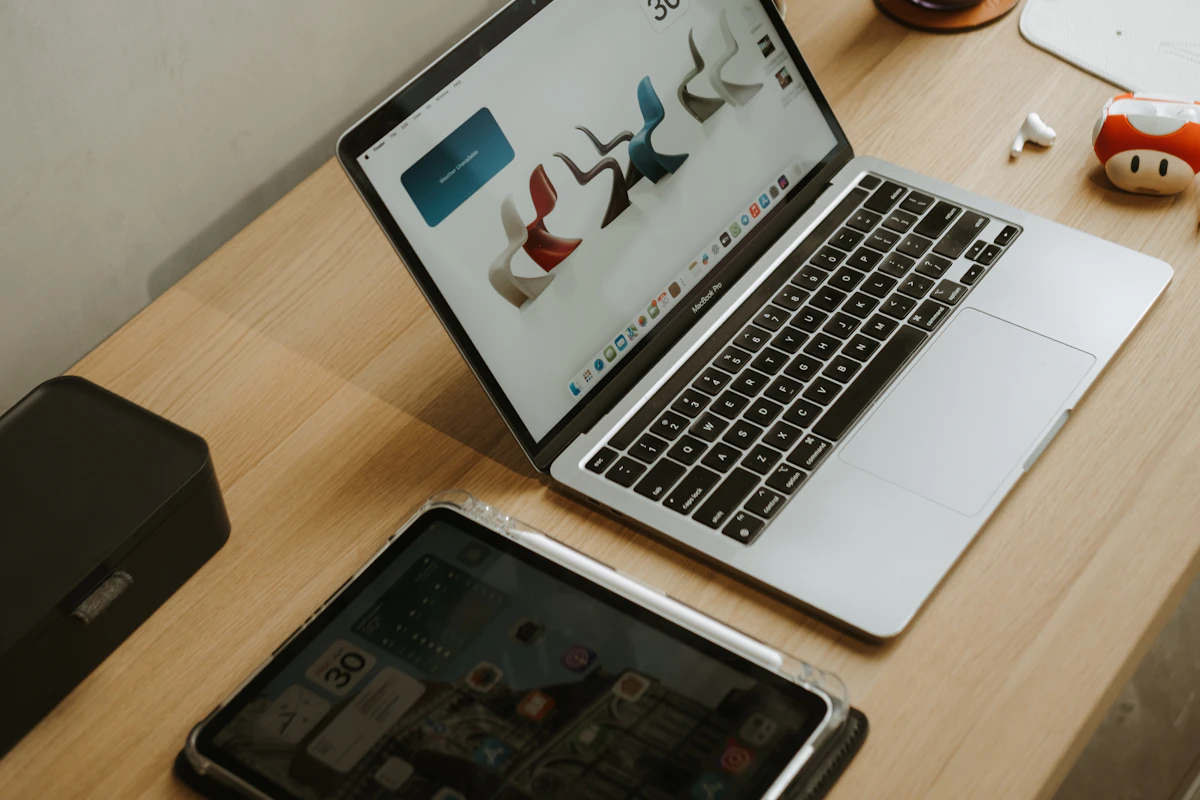
Choose a portable monitor for a repeated two-screen task, then verify the complete video-and-power connection and the space needed to set it up.
In this guide
A hotel desk is large enough for your laptop, but not much else. You are comparing a spreadsheet with a reference document and repeatedly switching windows. A portable monitor could keep both visible. It could also occupy the only space for your notebook while adding a stand, cables, and another item to protect in your bag.
Our assessment favors portable displays for repeatable tasks that benefit from two visible work areas: reference material beside a draft, a preview beside editing controls, or a shared screen during a small meeting. They are less compelling when the second display mainly holds distractions or the available surface is too small to position it comfortably.
Decide what the second screen will show
Name a specific task before choosing a size. Keeping a document visible requires readable text and a useful viewing angle. Showing a presentation to one person may favor a flexible stand. Editing color-sensitive work raises questions about documented color performance that a generic “vivid” description cannot answer.
Resolution alone does not establish usable workspace. A high-resolution small panel may need scaling to make text comfortable, reducing how much content fits at once. Compare the display size, resolution, and your expected scaling rather than treating more pixels as automatically more usable room.
A second screen also does not need to duplicate the laptop’s job. A modest reference display can be useful without matching every performance characteristic of the main screen.
Compare the working arrangements
| Situation | Useful arrangement | Main tradeoff |
|---|---|---|
| Several full days at a temporary desk | Portable monitor with a stable adjustable support | Added weight and setup time |
| Short sessions in cafes | Laptop alone or a very compact second-screen kit | Limited table depth can outweigh the extra workspace |
| Two-person presentation | Display that can face the other person easily | Reflections, viewing angle, and cable reach matter |
| Fixed home desk | Conventional monitor may be more practical | Less portable, but often more flexible in placement |
A portable monitor is not automatically the best choice for a small permanent desk. A conventional display on a suitable monitor arm may use the available surface more effectively.
Verify the connection before the panel
Some portable monitors can receive video and power through one suitable USB-C connection. That requires the host port, cable, and display to support the intended arrangement. A USB-C port that only supplies data or power does not automatically provide native video output.
Dell’s portable-monitor troubleshooting guidance identifies DisplayPort Alternate Mode support as a requirement for the models it covers. This is a useful example of why the laptop’s exact port specification matters. It is not evidence that every portable monitor uses the same connection method.
Other displays accept HDMI for video and require a separate power connection. Check cable direction and connector size, including whether the display uses a smaller HDMI connector. A cable intended to send USB-C video to an HDMI screen should not be assumed to work in reverse.
Five checks before choosing a display
- Identify the host. Read the exact computer’s external-display limits and port capabilities, including any difference between ports.
- Draw the connection path. List the video cable, power source, and any adapter. Confirm which components are included.
- Estimate readable space. Consider text size and scaling at the intended viewing distance, not just diagonal size.
- Measure the setup footprint. Include the stand behind the panel and the space needed to adjust it.
- Count the packed kit. Add the cover, stand, cables, and adapter to the display’s weight and thickness.
Apple’s external-display guidance also stresses that supported display configurations depend on the Mac model. A portable monitor still counts as an external display; its small size does not bypass the computer’s limits.
Power comes from somewhere
If the monitor runs from the laptop, it adds to the laptop’s energy use. If it uses separate power, the supposedly simple setup may need another outlet or a compatible battery source. Do not assume a display with two USB-C sockets automatically charges the laptop through either one.
Where power pass-through is supported, read the direction and documented output. The connected charger, cable, and display arrangement all matter. Our USB-C cable guide helps distinguish a cable suited to power from one suited to video and data.
Avoid comparing runtime from the monitor’s power label alone. Brightness, the computer’s workload, and the actual operating arrangement change the result. A power source that works with the screen at one setting is not a substitute for checking the specified requirements.
The stand is part of the display experience
A folding cover may provide only a few angles and require substantial depth behind the screen. A built-in kickstand may be easier to position but still sit low relative to a raised laptop. Portrait orientation, if useful, needs physical support as well as operating-system rotation.
Check whether touch support, if present, works with the intended operating system and connection. Touch can introduce another data requirement, and it is not automatically useful on a small desk where reaching across the laptop feels awkward.
A laptop stand can change the relative screen heights. Plan both positions together rather than buying two supports that compete for the same table space.
Who should skip a portable monitor?
Skip it if you work mostly at a desk with an available full-size display, or if your travel sessions are too short to justify unpacking it. Window-management tools and virtual desktops may solve occasional switching without extra hardware.
It may also be unsuitable when your laptop lacks the intended video connection and the alternative introduces drivers or adapters you cannot use. Confirm that path before choosing a panel based on appearance.
Frequently asked questions
Does every USB-C cable carry the picture?
No. The cable and host port must support the display’s video requirements.
Does a portable monitor need its own battery?
Not necessarily. Many depend on the host or a separate power source. Check the exact design.
Can I use it as an extended desktop?
Usually when the computer and connection support that configuration. Verify host display limits and operating-system behavior.
Sources and scope
Official references checked 2026-10-21: Dell’s USB-C portable-monitor connection guidance and Apple’s external-display support guide. Workflow recommendations are editorial judgments, not measured brightness, color, runtime, or compatibility test results.
Keep exploring
Compact vs. Full-Size Keyboards: Count Your Shortcuts Before the Keys
Compare compact and full-size keyboard layouts for number entry, navigation, mouse space, travel, shared desks, and the hidden cost of function layers.
Read the guide
Ergonomic Mice Compared: Vertical, Conventional, or Trackball?
Compare mouse shapes by hand fit, pointer work, desk space, and learning curve, with practical checks that matter more than an ergonomic label.
Read the guide
Laptop Docking Stations: When a Permanent Connection Hub Makes Sense
Assess laptop docks for multiple displays, host compatibility, power delivery, shared peripherals, software requirements, and a reliable daily desk connection.
Read the guide