Monitor Arms: Check the Desk Before You Clear the Desk
A practical comparison of monitor arms and original stands, covering VESA fit, weight ranges, desk construction, wall clearance, movement, and cable routing.
This guide draws on published documentation and practical use cases, not hands-on testing. It contains no paid product placements or affiliate shopping links. How we work · Affiliate Disclosure

A monitor arm should solve a specific placement problem and match both the display and the desk; screen size alone is not enough to establish fit.
In this guide
The monitor’s original base occupies the spot where you want to put a notebook. An arm seems to reclaim that space immediately. Then the desk turns out to have a thick rear rail, the screen has recessed mounting holes, and the wall leaves little room for the arm’s elbow. The tidy result depends on details that rarely appear in a front-facing desk photograph.
Our assessment favors an arm when the original stand cannot provide the needed position or when clearing its base meaningfully improves the workspace. If the existing stand already offers comfortable height, depth, and stability, an arm is an optional rearrangement rather than an automatic upgrade.
Start with the display’s actual mounting information
Find the display’s weight without its original stand and compare it with the arm’s specified range. Some adjustable arms have a minimum as well as a maximum supported weight; a very light display can be unsuitable for a particular mechanism.
Check the mounting pattern, commonly described through VESA dimensions, and the manufacturer’s mounting instructions. Matching hole spacing is necessary but may not settle everything. Recessed holes, a large mounting plate, connector placement, or an unusual rear shape can require an approved adapter or make a combination unsuitable.
Screen diagonal is a useful physical clue, but it is not a substitute for weight and geometry. A deep curved display can place a different load on a tilt mechanism from a flatter screen of similar weight. Ergotron’s specifications explicitly note depth-related limits for some designs, illustrating why the complete compatibility information matters.
Compare the main support options
| Support | Best reason to consider it | Main compromise |
|---|---|---|
| Original adjustable stand | Existing position already works | Base occupies surface space |
| Fixed or pole-mounted arm | Occasional adjustment at a known position | Repositioning may require more deliberate setup |
| Articulated adjustable arm | Frequent changes in screen depth or direction | Needs movement clearance behind and around the display |
| Dual-monitor support | Coordinating a stable two-screen arrangement | Shared geometry can limit independent positioning |
A dual arm is not automatically easier than two separate supports. Consider the gap between screens, their different weights, and whether both need to move together.
Inspect the desk before choosing the clamp
Read the permitted thickness, edge geometry, and surface requirements. A decorative apron or cable tray under the desk can block the clamp even when the top itself is thin enough. A beveled edge may provide less useful contact area than it appears to from above.
Do not assume that a desk’s general load rating means any small edge area can accept a monitor clamp. Materials and construction vary. Follow both the desk and arm manufacturers’ guidance, especially for glass, hollow-core, or otherwise restricted surfaces. A reinforcement plate is not a universal cure for an unsupported installation.
A grommet mounting option may use an existing opening, but the hole location and the specified hardware must suit the arrangement. Avoid planning a permanent modification before checking whether the arm actually reaches the required screen position.
A five-step fit check
- Record display details. Note model, weight without stand, mounting pattern, depth, and relevant mounting restrictions.
- Inspect the desk edge and underside. Measure thickness and clearance around rails, drawers, and cable trays.
- Map the desired screen position. Include viewing distance, height, and any portrait orientation you intend to use.
- Check the arm’s movement envelope. Allow room behind the desk and for the display to swing without hitting a wall or another screen.
- Plan installation and cables. Follow the specified hardware and support procedure, and leave enough cable movement for the full intended range.
These checks are more useful than choosing by the largest supported diagonal printed in a listing. If your computer sits beside the display, our laptop stand guide can help plan the second screen’s position as part of the same layout.
Moving room is different from desk space
An arm can remove a broad base from the tabletop while needing more space behind it. On a desk pushed against a wall, an elbow may force the monitor forward. A design with appropriate folded depth can therefore be more useful than one with a longer maximum reach.
Consider how often you actually move the display. Turning it toward another person, switching between portrait and landscape, or changing between seated and standing positions can justify adjustment. If the monitor remains in one place, a simpler support may serve equally well.
Cable routing must preserve that movement. Leave suitable slack around joints and avoid tight bends or tension at connectors. Ergotron’s guidance specifically notes cable slack when repositioning. If the screen connects through a docking station, place the dock where the host cable remains practical too.
Who should skip an arm?
Skip an arm if the desk manufacturer does not support the intended attachment or if the available clearance prevents a useful position. Keep the original stand when it already meets your needs and stability is more important than clearing a small amount of surface.
For an occasional second screen away from home, a portable monitor with an appropriate stand may fit the task better than building a permanent mounting arrangement.
Frequently asked questions
Is matching VESA spacing enough?
No. Weight range, mounting recesses, hardware, display depth, and physical clearance can also affect compatibility.
Can an arm improve comfort by itself?
It provides positioning options. The useful result depends on the complete desk arrangement and the position you choose; no health outcome is guaranteed.
Will a dual arm fit two different monitors?
Possibly, but verify each display independently and check whether the combined geometry permits the arrangement you want.
Sources and scope
Official references checked 2026-10-21: Ergotron’s monitor-arm selection guide, Ergotron’s published arm capacity ranges, and Ergotron’s example of display-depth limits. Fit recommendations are editorial judgments, not load, wobble, durability, or clinical test results.
Keep exploring
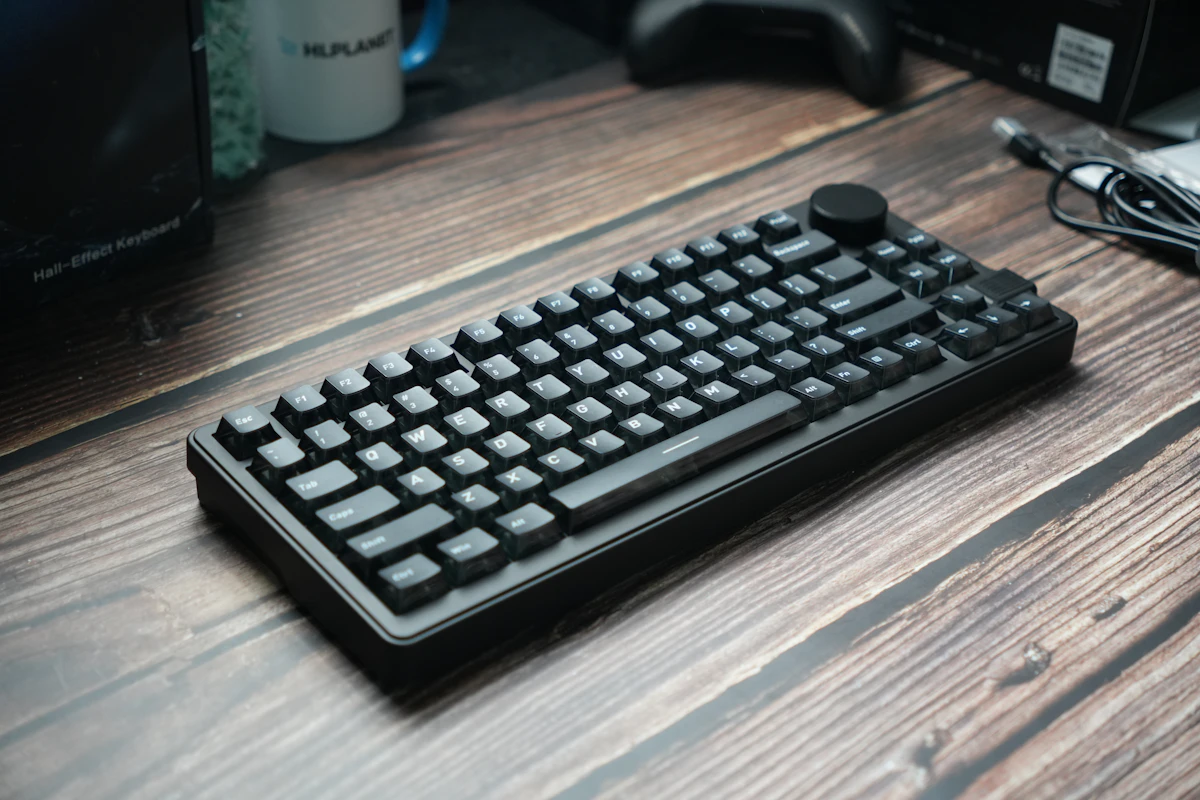
Compact vs. Full-Size Keyboards: Count Your Shortcuts Before the Keys
Compare compact and full-size keyboard layouts for number entry, navigation, mouse space, travel, shared desks, and the hidden cost of function layers.
Read the guide
Ergonomic Mice Compared: Vertical, Conventional, or Trackball?
Compare mouse shapes by hand fit, pointer work, desk space, and learning curve, with practical checks that matter more than an ergonomic label.
Read the guide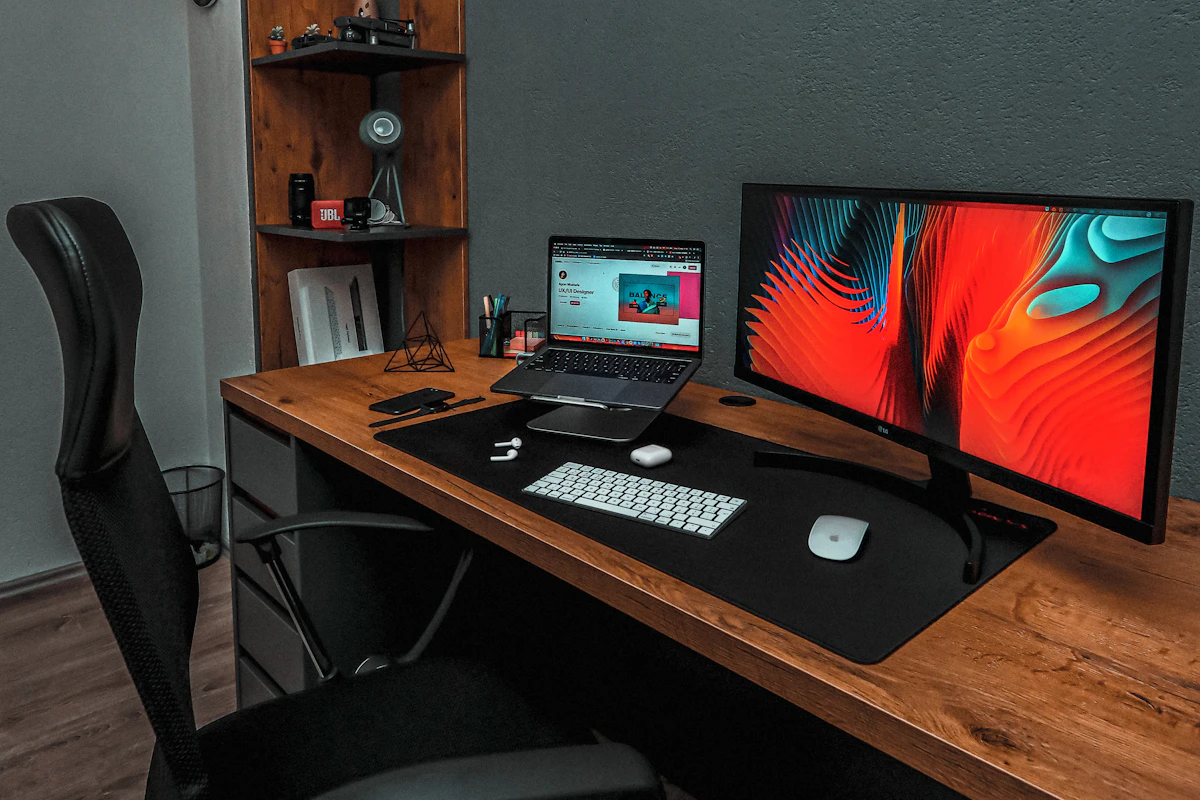
Laptop Docking Stations: When a Permanent Connection Hub Makes Sense
Assess laptop docks for multiple displays, host compatibility, power delivery, shared peripherals, software requirements, and a reliable daily desk connection.
Read the guide