USB-C Cables Compared: Charging, Data, and Video Are Separate Jobs
Understand USB-C cable power labels, data rates, display support, and practical length choices without paying for capabilities you do not use.
This guide draws on published documentation and practical use cases, not hands-on testing. It contains no paid product placements or affiliate shopping links. How we work · Affiliate Disclosure
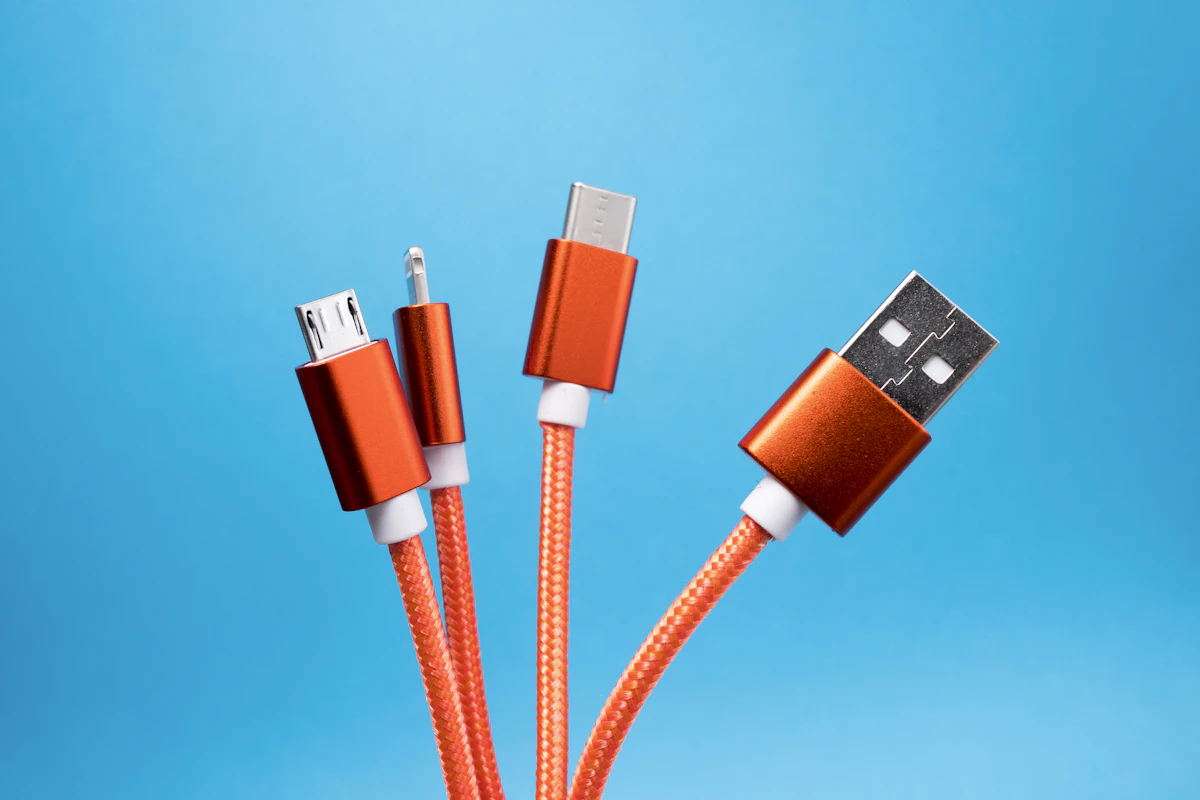
Choose a cable for its stated power, data speed, and display capabilities; the USB-C connector alone guarantees none of those performance levels.
In this guide
A cable can charge your laptop perfectly and still disappoint when you copy a large folder. Another can connect a fast drive but be too short to reach the outlet beside your bed. Both may have identical USB-C plugs. The connector is useful precisely because it supports many jobs, but that flexibility makes an unmarked cable drawer difficult to navigate.
For most households, a small set of clearly identified cables is more practical than treating every cable as interchangeable. Keep a comfortable charging cable where you relax and a documented data or display cable where you work. A single premium cable can do several jobs, but only if its specifications say so.
Separate the three questions
Power: What charging capability is stated? USB-IF’s current certification requirements call for USB-C to USB-C cables in its compliance program to identify a 60-watt or 240-watt power capability. Older cables and products outside that program may carry different markings. The label describes capability, not the power your device will necessarily draw.
Data: What transfer rate is supported? A cable sold primarily for charging may have modest data capability. A higher charging rating does not imply a higher data rate. Compare an explicit data-speed statement with the requirements of your drive and computer.
Video: Does the complete connection support the required display mode? The computer port, cable, and display or adapter all matter. A suitable cable cannot add display output to a computer port that does not provide it.
Match the cable to its location
| Main job | What deserves priority | What may be unnecessary |
|---|---|---|
| Phone beside a bed | Appropriate charging support, comfortable length, flexible jacket | High-speed file transfer |
| External storage at a desk | Explicit data rate and host compatibility | An extra-long cable |
| Laptop charging while traveling | Sufficient power capability and manageable bulk | Display capability if never used |
| USB-C monitor connection | Documented video, data, and power support for the setup | Choosing on charging watts alone |
The table is a starting point rather than a promise of compatibility. Check exact requirements on both ends before purchasing a cable for a monitor or docking station.
Length is part of performance in daily life
Measure the route, including the distance around furniture. A cable that barely reaches can pull on the device or leave its connector under sideways tension. Conversely, a long cable on a small desk creates coils that catch on a mouse or get trapped under a stand.
For a drive sitting beside a laptop, a short cable is often easier to manage. For a phone you use while sitting down, extra reach can be genuinely useful. Do not assume the longest cable in a product family supports the same data specification as the shortest; verify the exact length and variant.
Braiding changes the feel and handling, but it is not a universal durability guarantee. A thick cable may resist tangling yet be stiff enough to move a lightweight accessory. A soft jacket may pack neatly but provide less abrasion resistance in a rough bag. Construction quality matters more than the appearance of the outer covering.
Check connector clearance and replaceability
Phone cases and recessed ports can interfere with a large plug housing. Right-angle connectors may reduce protrusion in one setup while pointing the wrong way in another. Look at the surrounding space, especially beside closely spaced laptop ports.
Avoid treating a tiny connector adapter as a universal solution. It can change the capabilities or compatibility of the overall path. The cleanest arrangement is usually a cable explicitly intended for the two devices and the required task.
If you depend on one cable for both charging and presentations, carry a suitable spare. Labeling cables by purpose is more helpful than identifying them only by color. A small “monitor” or “travel charger” label prevents a slow data cable from becoming the mystery behind a failed meeting-room connection.
Who should skip the expensive cable?
Someone charging a phone overnight does not need to pay for a high-speed display cable unless another task requires it. Keep an existing cable that works reliably, has no visible damage, and meets the device’s requirements.
Do replace a cable with exposed conductors, a damaged connector, or intermittent connections after checking the port. Do not expect a new cable to solve a charger that lacks sufficient output. Our USB-C charger guide covers that side of the connection, while USB-C hubs adds the complications of multiple peripherals.
Frequently asked questions
Does 240 watts mean faster file transfers?
No. Power and data capability are separate specifications. Look for a stated data rate rather than inferring one from the power label.
Can a charging cable connect a monitor?
Only if its capabilities and the devices support the required video connection. Many charging-oriented cables are unsuitable for that job.
Is a more capable cable harmful to a small device?
A compliant cable with greater capacity does not force that capacity into the device. Compatibility, condition, and the charger still matter.
Sources and scope
References checked October 21, 2026: USB-IF cable and connector requirements and Microsoft’s explanation of USB-C feature compatibility. This is a specifications-based comparison, not a laboratory cable test.
Keep exploring

Car USB Chargers: Build a Charging Setup That Fits the Journey
Compare built-in vehicle ports, socket chargers, and passenger charging layouts by power, infotainment compatibility, cable routing, and everyday convenience.
Read the guide
Magnetic Power Banks: When the Snap-On Convenience Is Worth It
Assess magnetic power banks by phone and case compatibility, physical fit, usable energy, wired options, and the realities of carrying a thicker phone.
Read the guide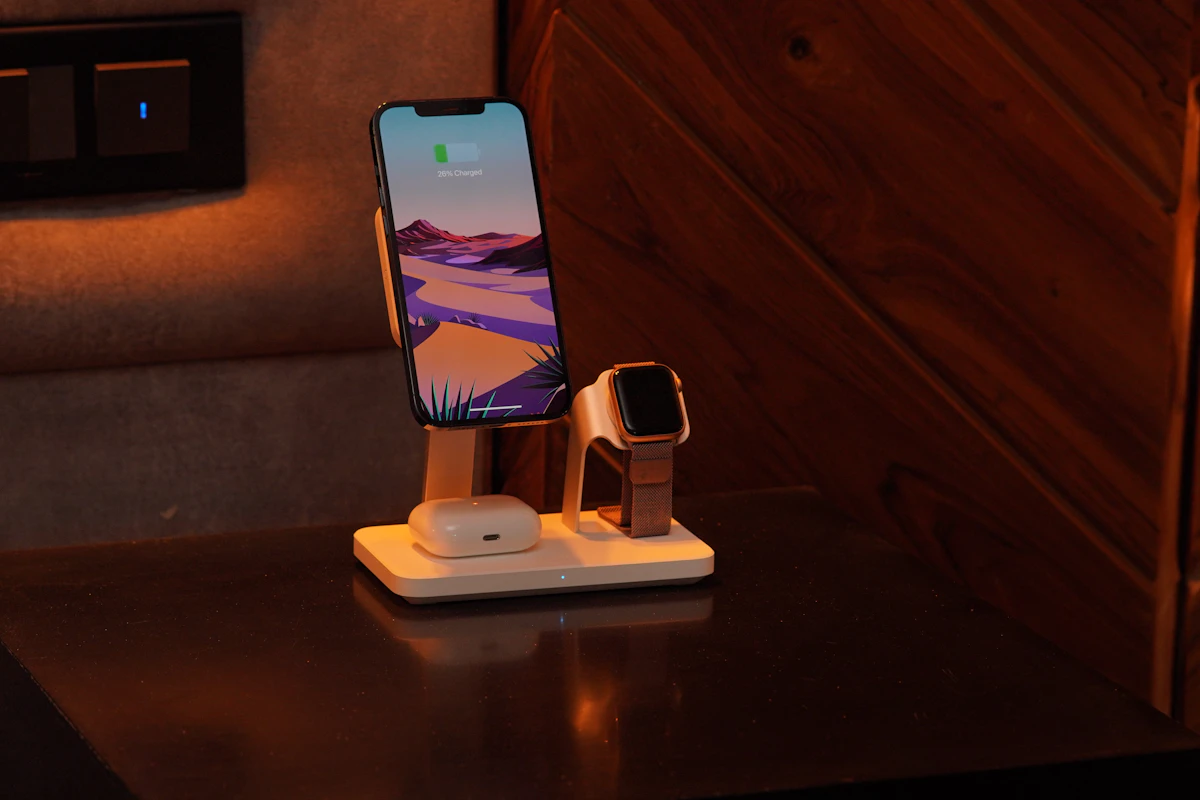
Multi-Device Charging Stations: One Stand or Separate Chargers?
Compare combined phone, watch, and earbud charging stations with separate chargers, including compatibility, daily schedules, portability, and replacement flexibility.
Read the guide