Built-In, USB, or Phone Webcam: Which Upgrade Is Worth Making?
Compare webcam setups by framing, lighting, app limits, microphone choice, mounting, and everyday convenience rather than resolution alone.
This guide draws on published documentation and practical use cases, not hands-on testing. It contains no paid product placements or affiliate shopping links. How we work · Affiliate Disclosure
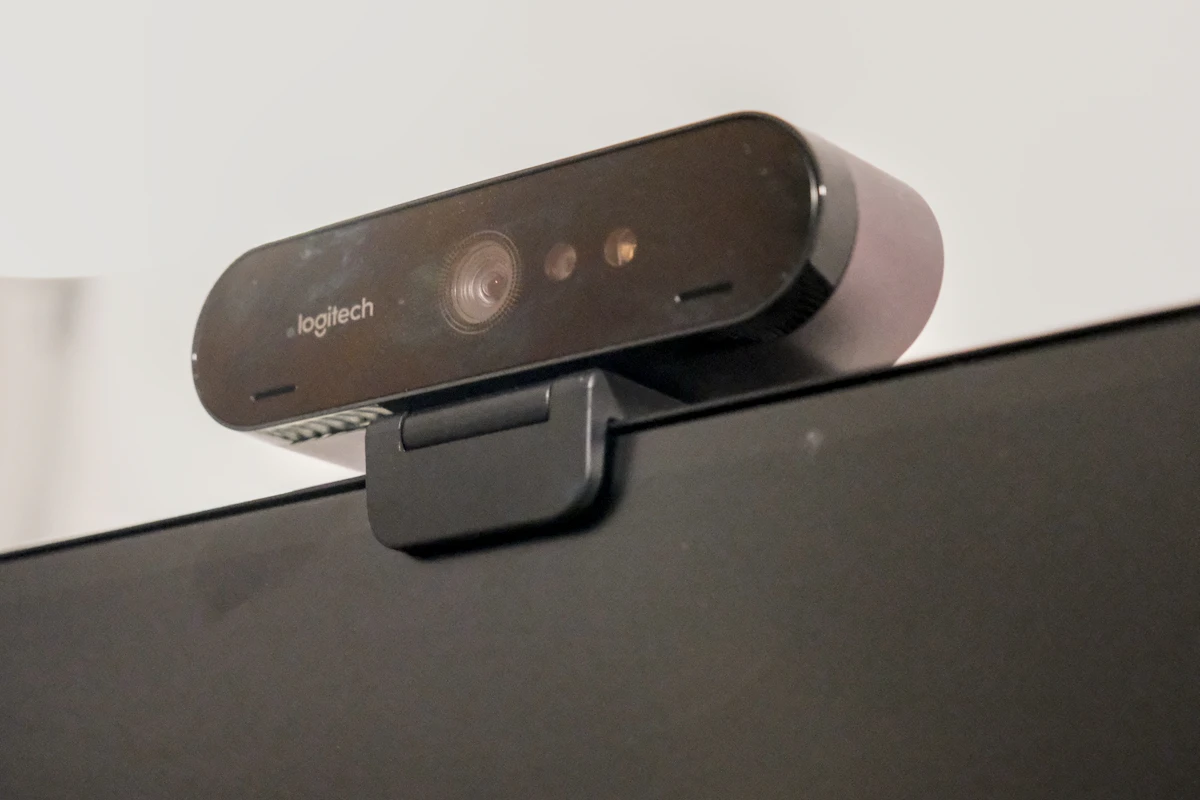
Improve camera position and lighting first; choose a new camera when it solves a specific limitation in your actual calling app.
In this guide
An early video call begins with a bright window behind you and a laptop camera below eye level. A higher-resolution camera might record more detail, but it will not automatically create a better angle or move the window. Before replacing hardware, examine the image your current arrangement produces.
Built-in cameras, separate USB webcams, and phone-based setups each have useful roles. This guide compares their practical requirements and published capabilities. It does not claim side-by-side image tests or rank specific camera models.
Start with the frame, not the pixel count
Open the preview in the app you normally use. Look at the position of your face, the space above your head, and what appears behind you. Move the camera or seating position before changing settings. If possible, arrange the available light so that your face is illuminated rather than strongly silhouetted.
An external webcam is useful partly because it can move independently of the laptop screen. That can help when a laptop sits beside a larger monitor. A phone on a suitable stand offers similar positioning freedom, but it also occupies a device you may need for other tasks.
| Setup | Where it fits well | Main compromise | Check first |
|---|---|---|---|
| Built-in laptop camera | Frequent calls with minimal setup | Position follows the laptop | Image at your normal seating height |
| USB webcam on a monitor | A regular desk with a separate screen | Another cable and mounting point | Monitor fit and operating-system support |
| USB webcam on a stand | Flexible framing or demonstrations | Uses desk space | Mount compatibility and cable reach |
| Phone as webcam | A compatible phone-and-computer workflow | Phone availability and power management | Software requirements and stable mounting |
Resolution is a mode, not the whole image
Read the combinations of resolution and frame rate a camera supports. A specification may offer one frame rate at a lower resolution and another at its maximum resolution. Do not assume all headline figures operate together.
The calling application also controls what is transmitted. Its settings, service limits, and connection conditions may differ from a local recording application. A 4K-capable camera can still be useful for certain workflows, but buying it does not guarantee that every participant receives a 4K image.
Field of view deserves equal attention. A wider view can include several people or a demonstration area, while a narrower frame may be more convenient for one person in a small room. Check whether a stated field of view is diagonal or horizontal before comparing numbers from different sources.
Automatic features still need a sensible scene
Autofocus, exposure adjustment, and framing tools can be helpful, but assess them against the intended task. Someone presenting an object close to the lens has different needs from someone remaining seated at a fixed distance.
If you mainly talk from one position, constant changes in framing may be unnecessary. If two people share the desk, a wider view could matter more than a tighter solo portrait. List the desired behavior instead of assuming that every automatic feature should be enabled.
Consider software access too. Basic camera operation and advanced controls may have different requirements. On a managed work computer, a feature that needs an unavailable configuration app may not be useful. Read the current support information for the operating system you use.
A phone camera adds another routine
Using a compatible phone as a webcam can be a practical way to evaluate a different camera without immediately buying hardware. Apple’s Continuity Camera is one documented example, with device and software requirements that must be checked.
The phone still needs a stable mount, unobstructed cameras, and a power plan for long sessions. Think about incoming calls, authentication prompts, or messages that require picking it up. If those interruptions are frequent, a dedicated webcam may be more convenient despite the phone’s capabilities.
Our phone-tripod comparison covers support options. If a raised laptop is part of the arrangement, see laptop stands and make sure camera positioning does not create an awkward keyboard setup.
Keep audio as a separate decision
A camera’s microphone is not automatically the best microphone in the room. Check the input selected in the calling app and listen to a short recording. An existing headset may provide more useful voice pickup than a microphone positioned on top of a distant monitor.
If people can see you clearly but struggle to hear you, a camera purchase targets the wrong problem. The USB microphone comparison explains placement and room considerations. If the call freezes, investigate the network connection as well.
Who should skip a new webcam?
Keep the built-in camera if it provides a clear, appropriately framed image in the app you use. Spend time on placement and lighting before paying for a higher specification. Skip a phone setup if having the phone mounted would repeatedly interrupt the session.
Frequently asked questions
Does 4K guarantee a better meeting image?
No. Lighting, optics, framing, processing, app settings, and connection conditions also matter.
Does a privacy cover mute the microphone?
Not necessarily. A cover blocks the lens; use the app or device controls to manage audio separately.
Can a webcam connect through a hub?
Check the camera’s requirements, hub capability, and other connected devices. If problems occur, compare operation through a supported direct connection.
Sources
Logitech’s webcam specification sheet illustrates separate resolution, frame-rate, and field-of-view modes. Apple’s Continuity Camera documentation explains phone mounting and compatibility. Sources checked October 21, 2026.
Keep exploring
Ethernet vs. Wi-Fi for a Home Desk: When a Cable Helps
Compare wired and wireless home connections for calls, gaming, file transfers, and everyday work, with a practical way to identify the bottleneck.
Read the guide
Network Switches: Add Wired Ports to a Home Office
Understand port counts, uplinks, unmanaged and managed switches, power needs and the difference between a switch and a router.
Read the guide
Portable SSDs Compared: Capacity, Connection, and Real Workflows
Understand portable SSD interface speeds, host and cable limits, file-system choices, and the difference between working storage and a backup.
Read the guide